Manual
IoCare AppUser Guide
Install & Sign up
Press the button below to download and install IoCare app.
- You can use the app properly with Android7 and iOS10 or higher smartphone OS version.
- There is no resolution limitation, but some tablets may not work properly.
-
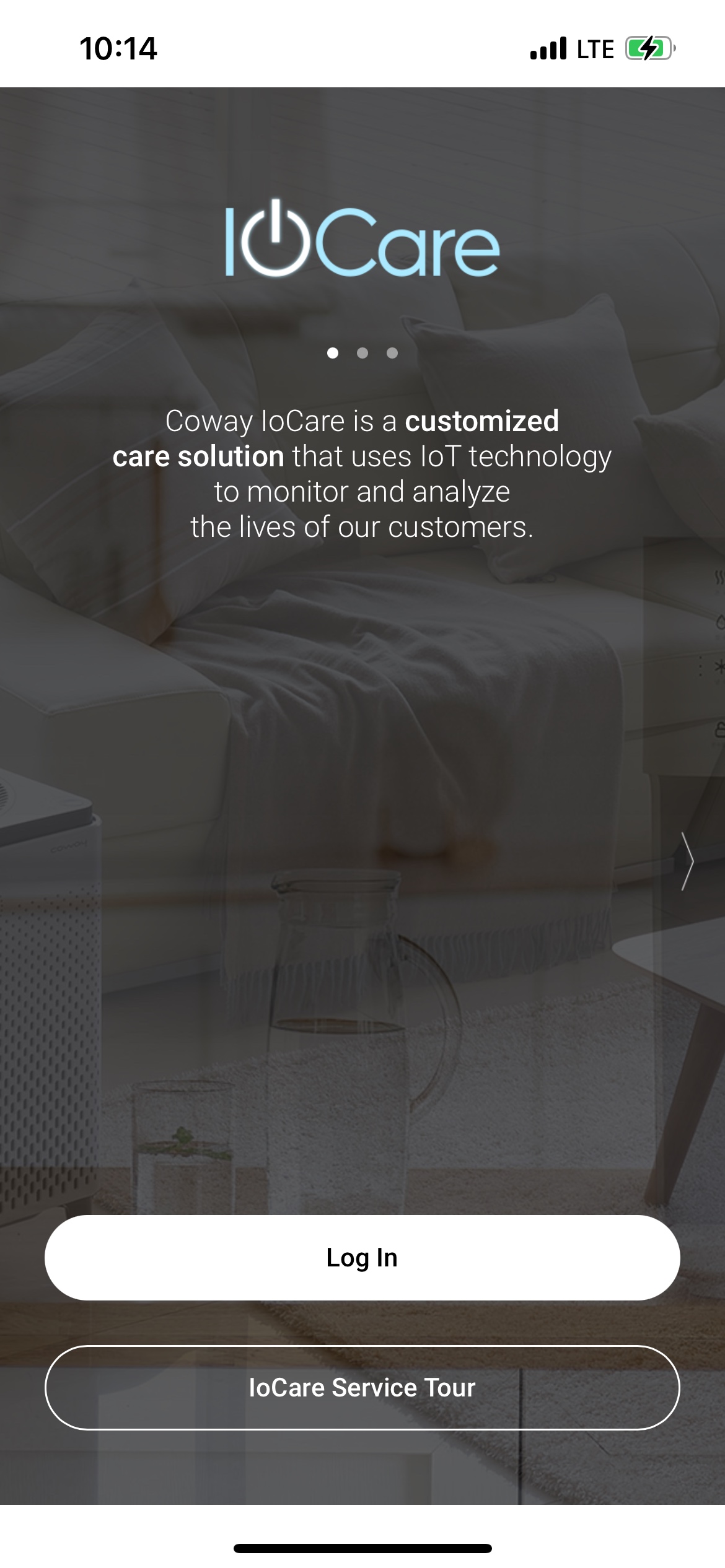
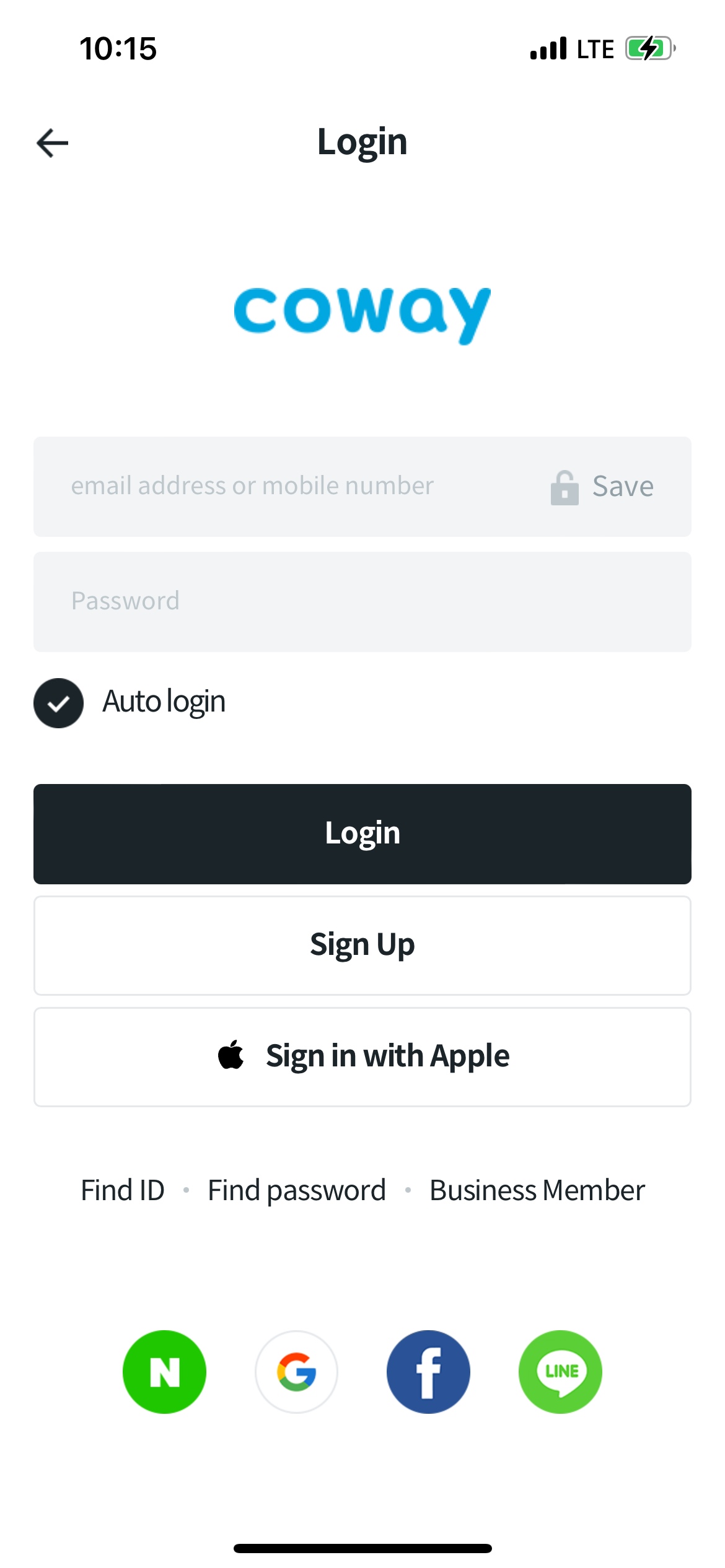
You need to sign up as a member to use IoCare app. Please sign up to proceed.
-
Once registration is complete, you will go to the home screen. Please proceed to the next step to register your product.
Product Setting
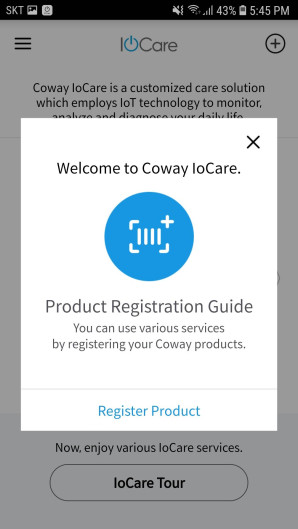
Please press 'Register Product' to go to the product registration screen.
-
Please turn on the product to activate pairing mode.
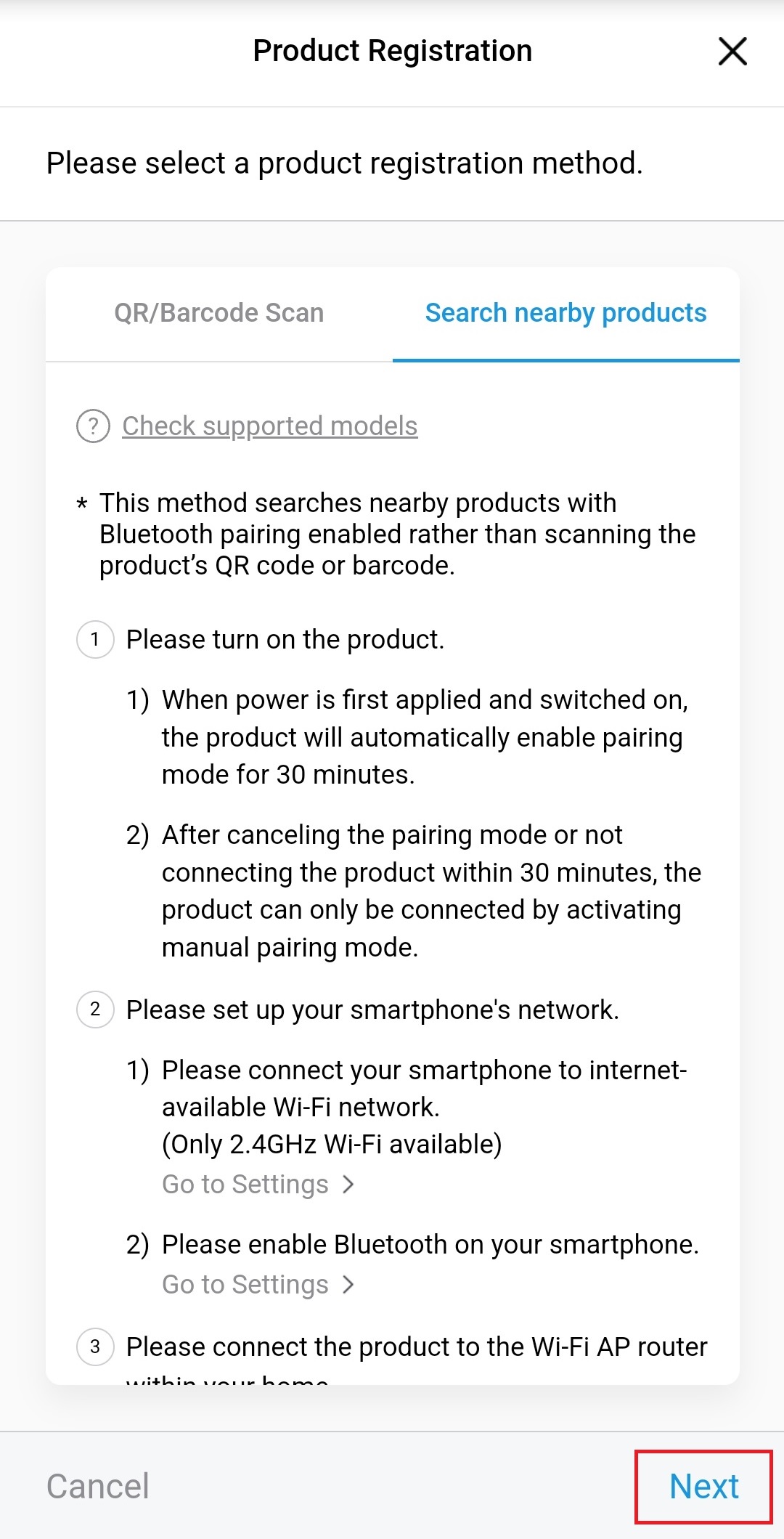
- When power is first applied and switched on, the product will automatically enable pairing mode for 30 minutes.
- After canceling the pairing mode or not connecting the product within 30 minutes, the product can only be connected by activating manual pairing mode.
[Manual Pairing Mode Activation Guide]
Please press the button on the screen to activate Bluetooth pairing mode.
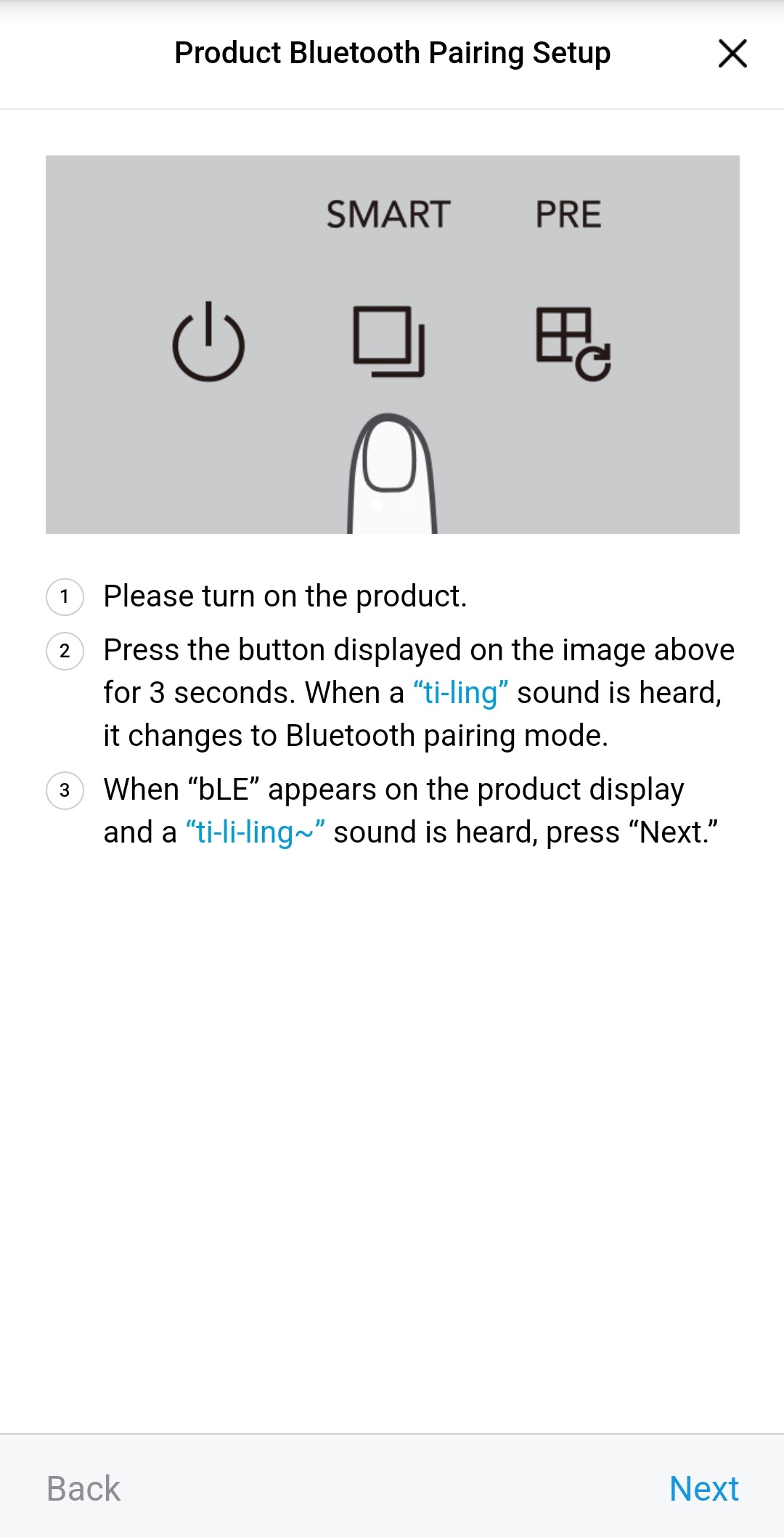
On the 'Product Registration' screen, Press the [Search nearby products] tab title.
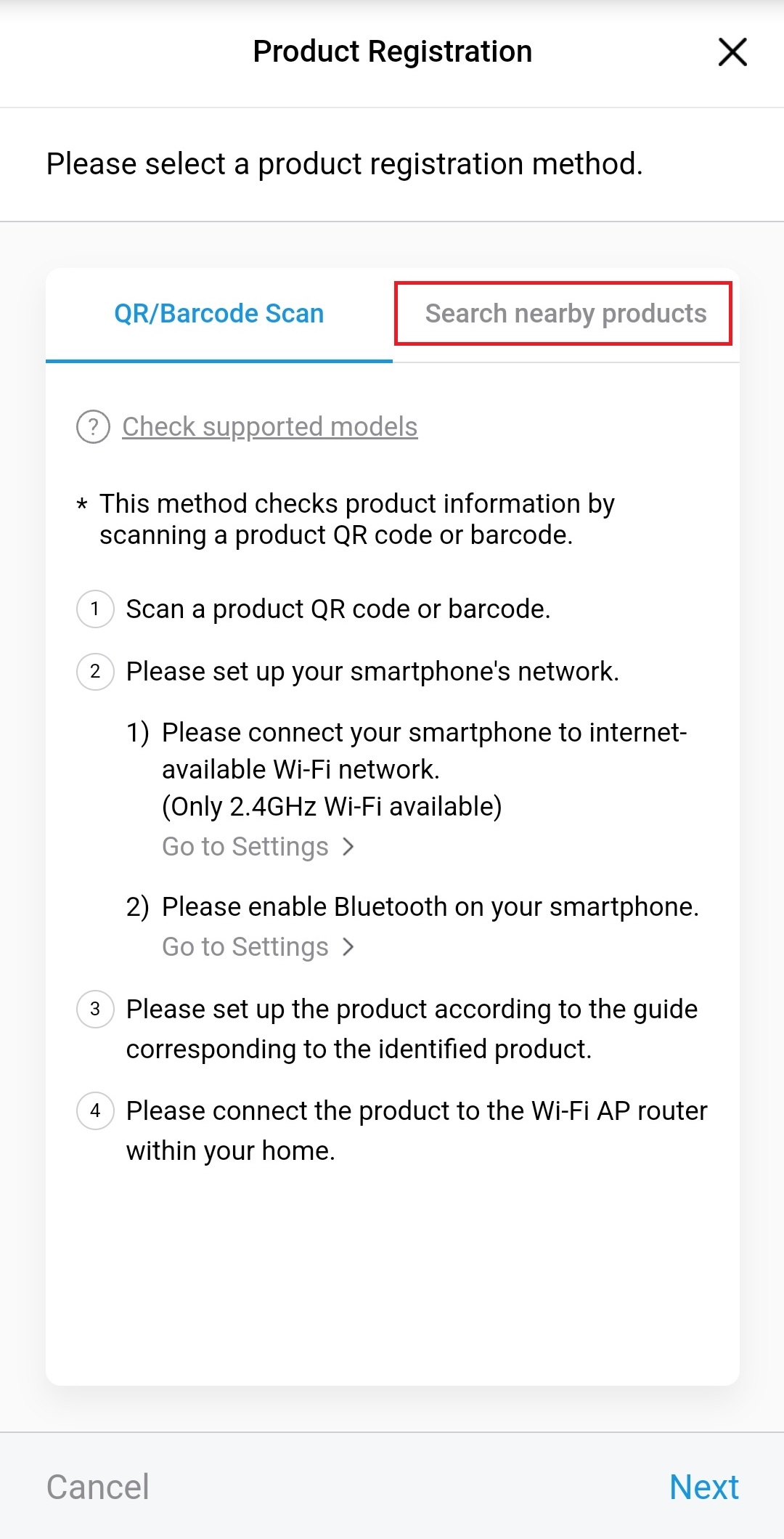
Please proceed with the smartphone network setting.
-
Android
-
4-1
Please turn your smartphone's Wi-Fi on and connect to a wireless router(AP).
- Both 2.4GHz and 5GHz Wi-Fi can be connected.
- Please use alphanumeric characters for Wi-Fi SSID and password.
-
4-2
Please enable Bluetooth on your smartphone.
-
4-3
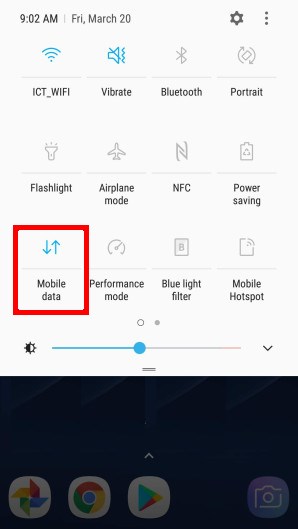
Please turn off the mobile data of the smartphone to proceed.
(You can turn off with the button that comes out by lowering the top status bar.)
iPhone
-
4-1
Please turn your smartphone's Wi-Fi on and connect to a wireless router(AP).
- Both 2.4GHz and 5GHz Wi-Fi can be connected.
- Please use alphanumeric characters for Wi-Fi SSID and password.
-
4-2
Please enable Bluetooth on your smartphone.
Press the [Next] button at the bottom of the screen.
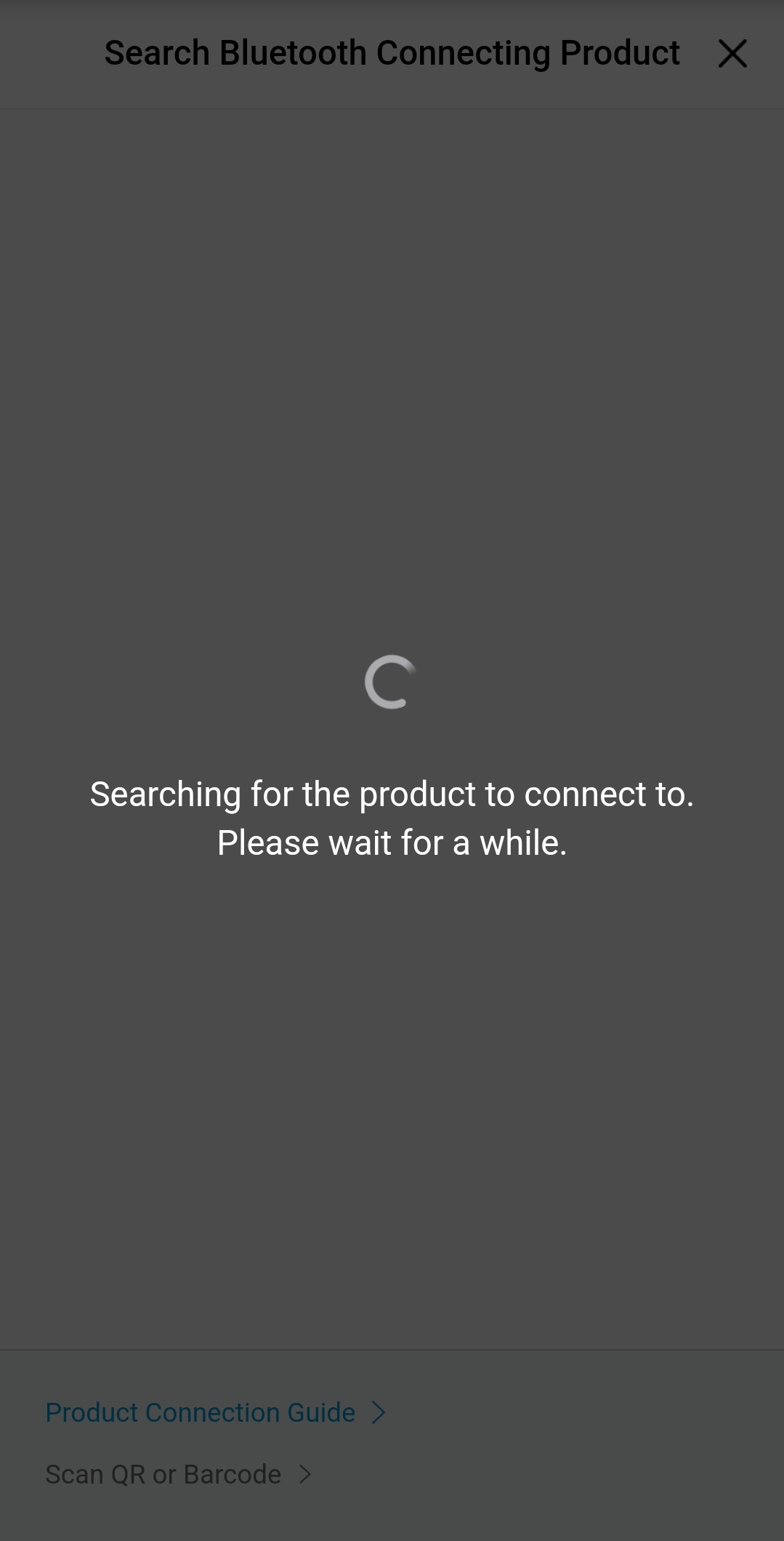
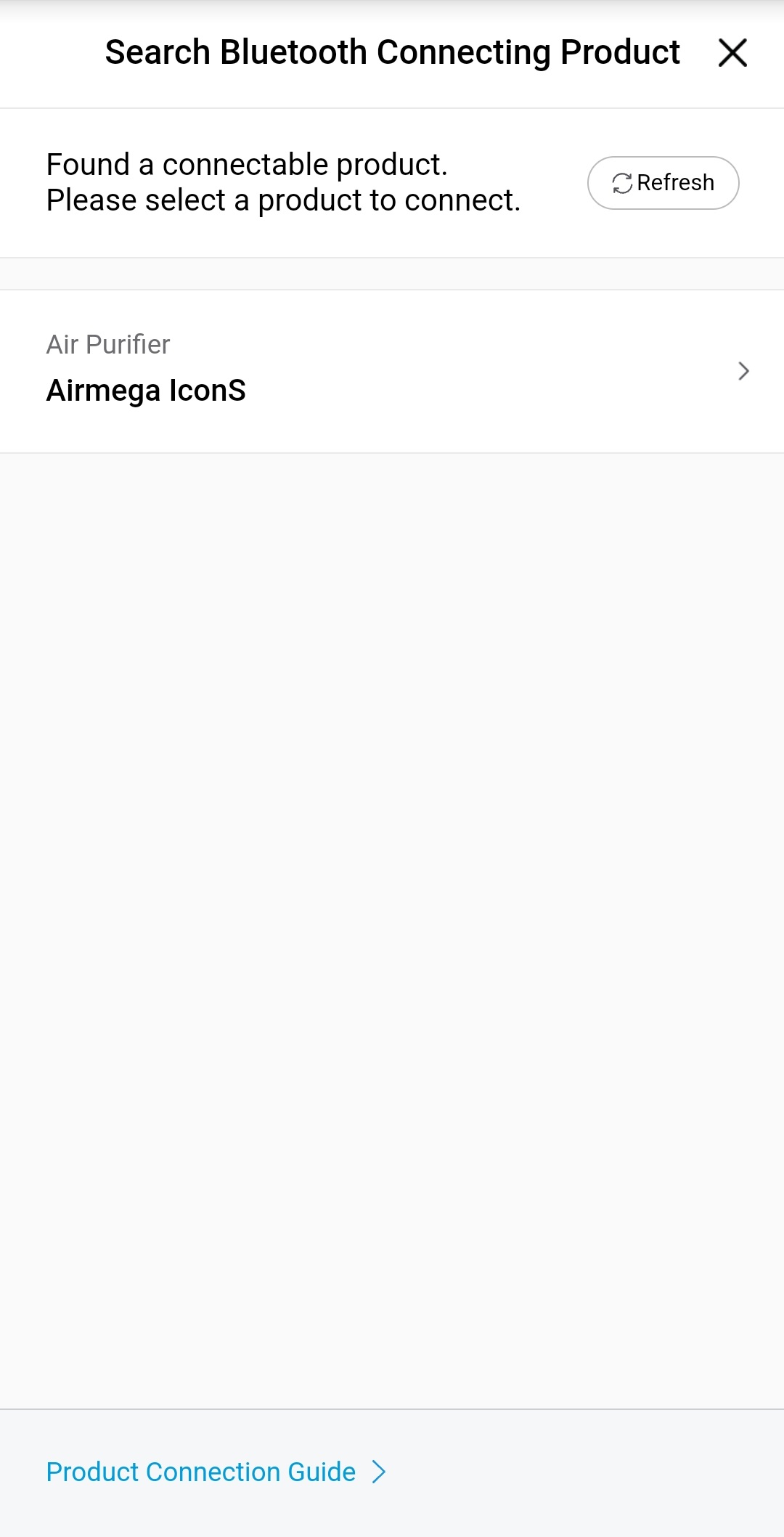
From the product list that appears after searching for products, tap the product to connect on the screen.
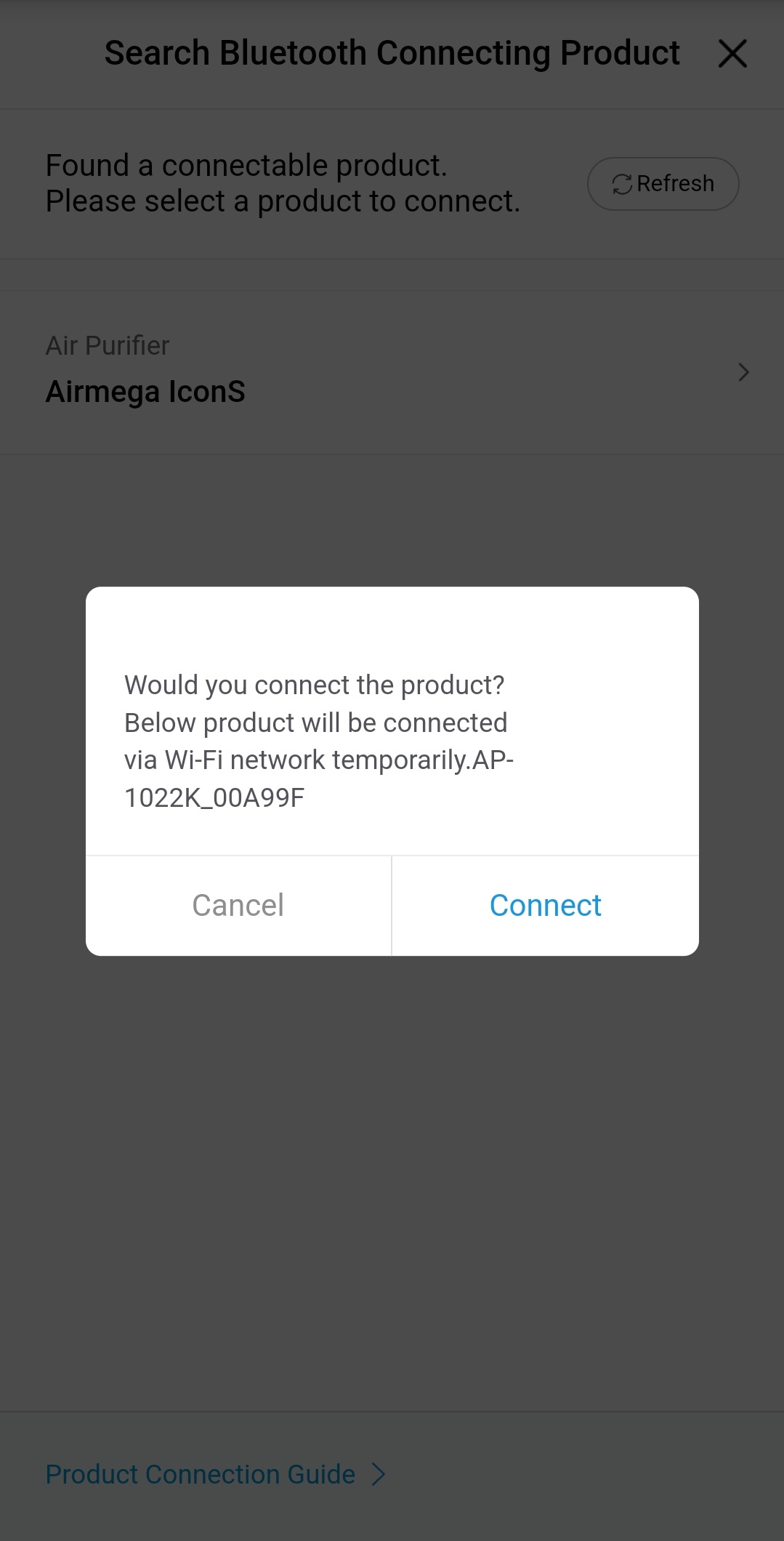
In the pop-up window to confirm product connection, press [Connect].
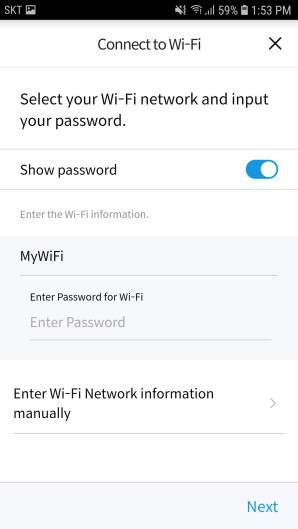
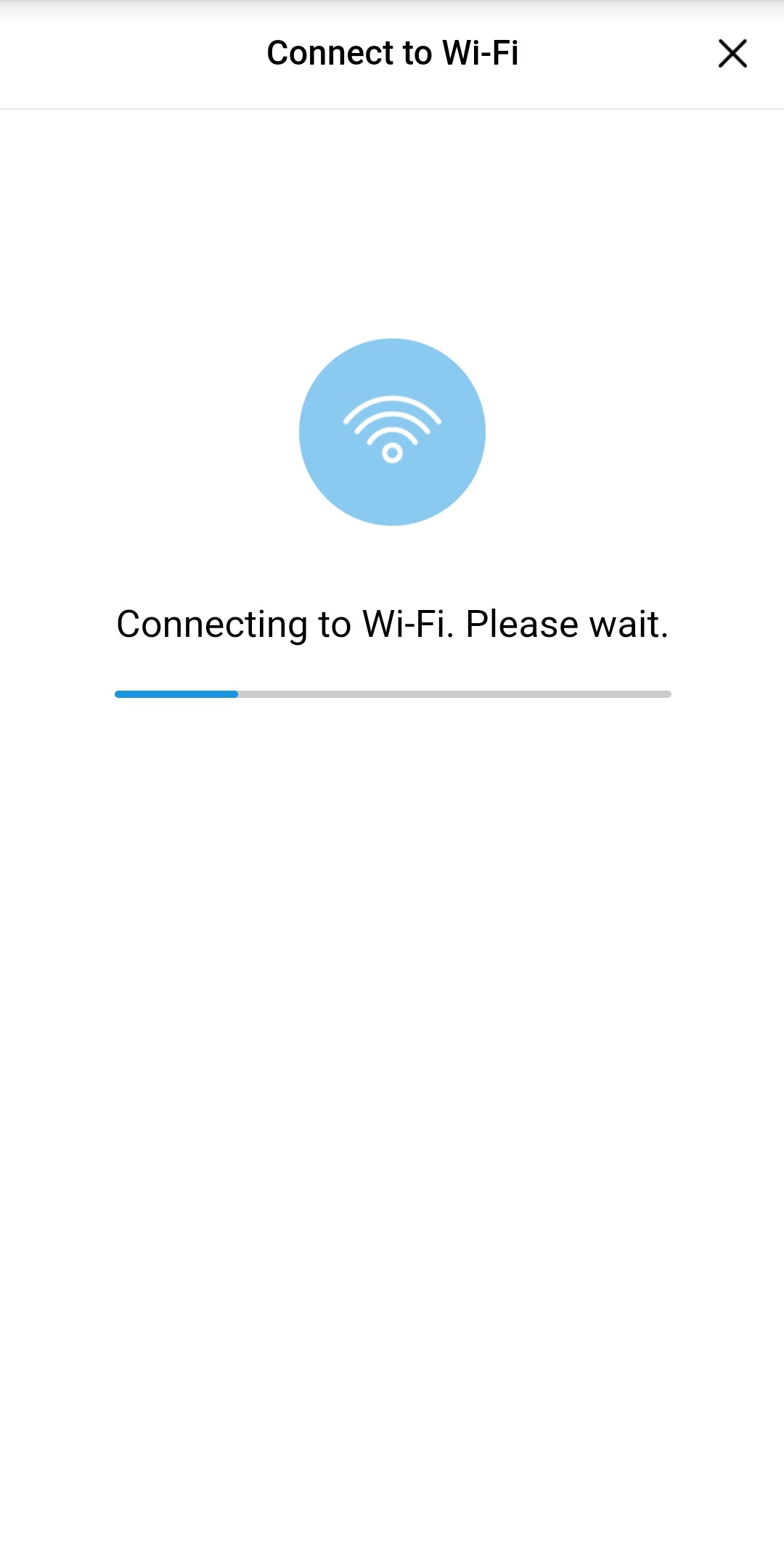
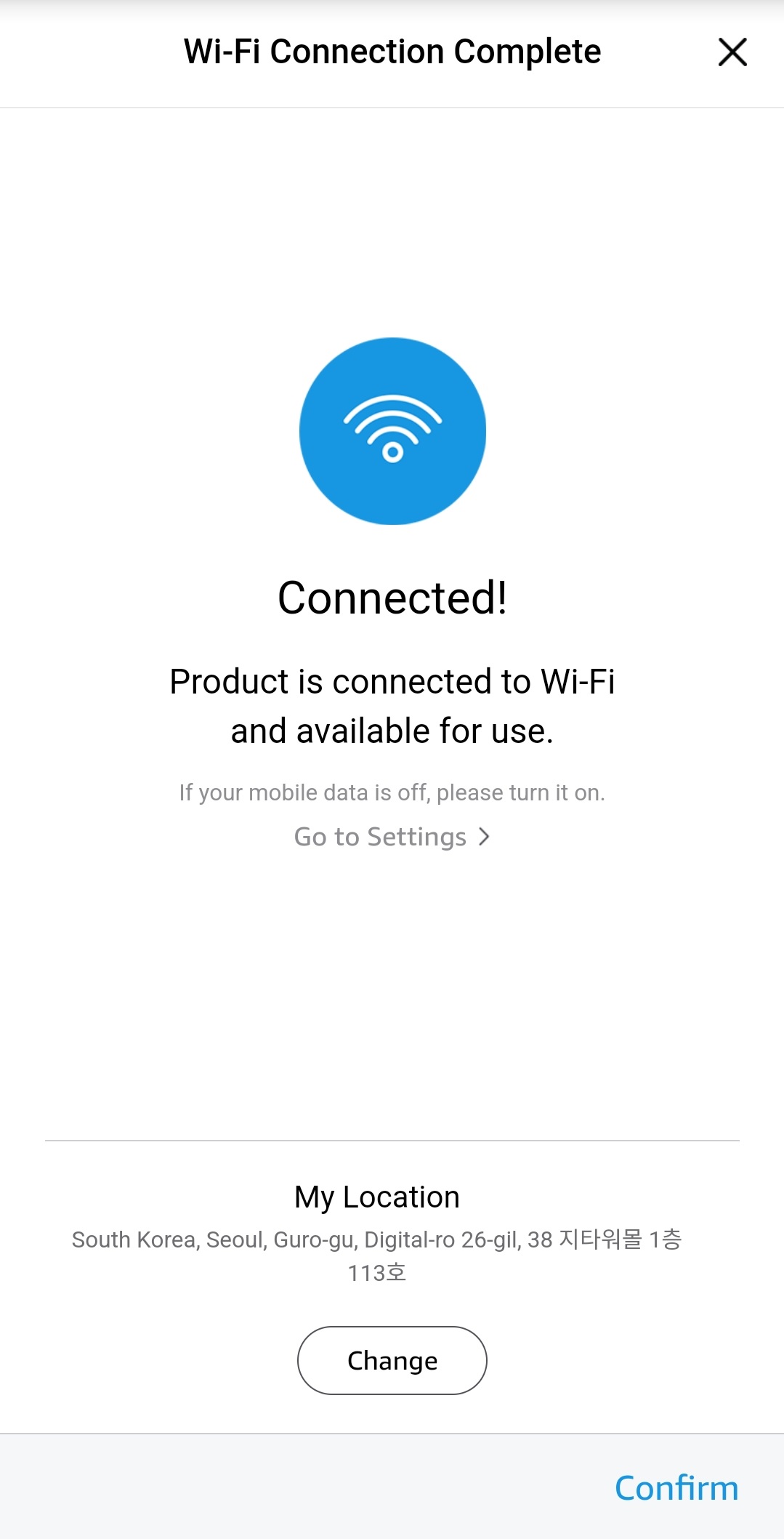
Please select Wi-Fi to connect the product and enter the password
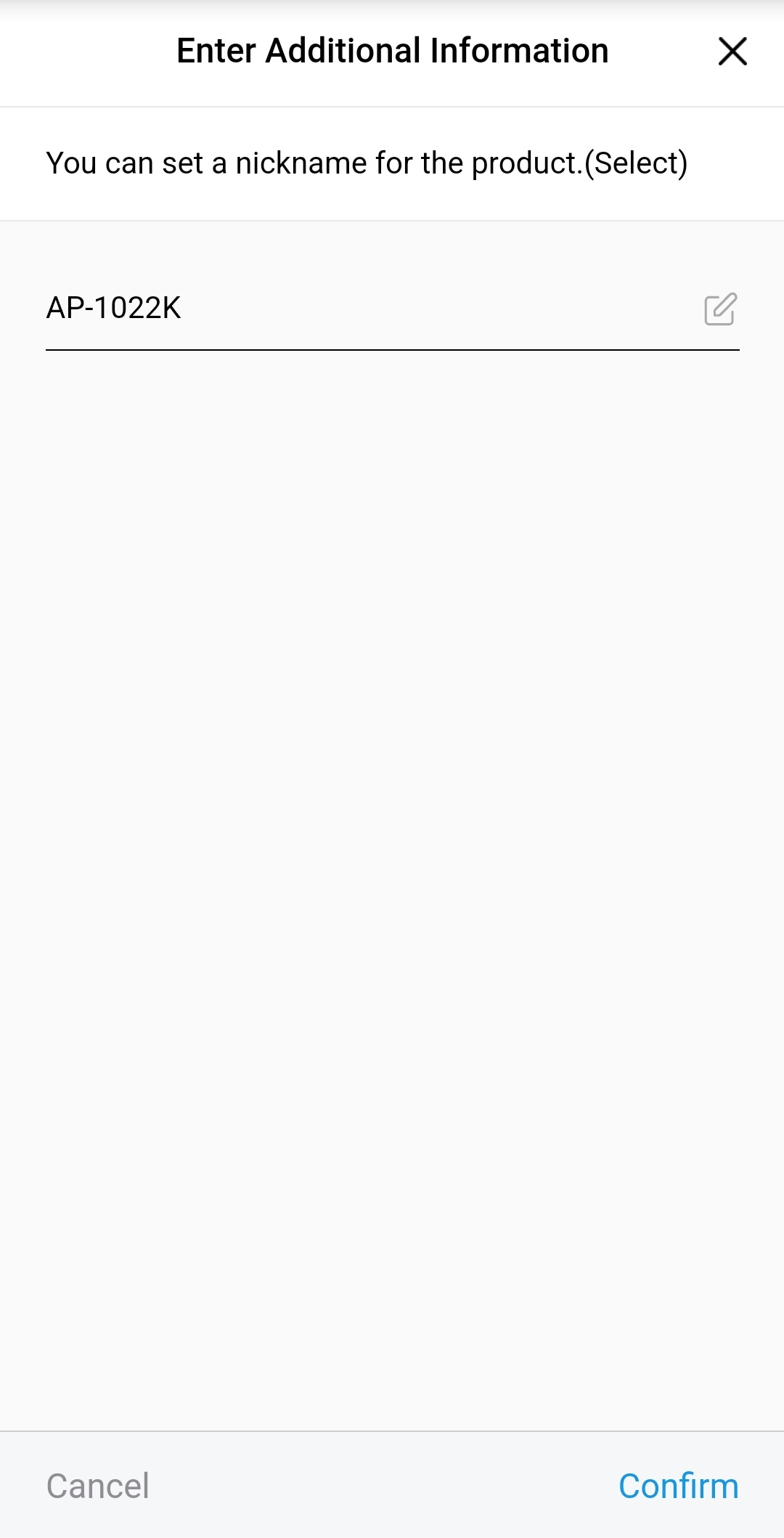
Once the Wi-Fi setting is complete, you can edit product nickname.
The product setting is complete, and you will go to the home screen.
Please turn on mobile data again to use IoCare service.
-
Information on Use
- Function of IoCare service may vary depending on the product specifications and may change without prior notice according to the application update.
- You can use IoCare service properly only when the Wi-Fi connection of the product is completed normally.
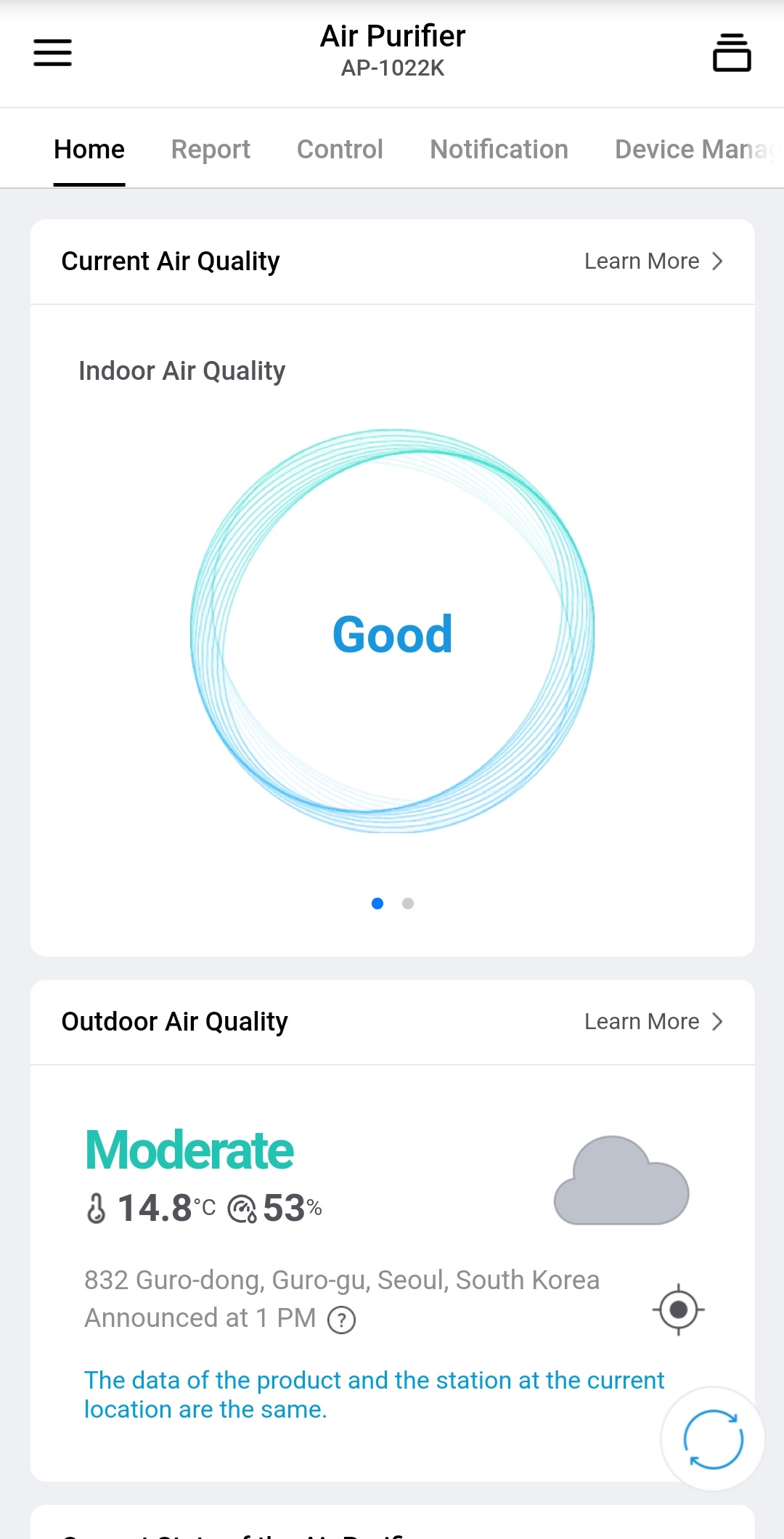
Home
- You can check the indoor air quality and overall use of the product.
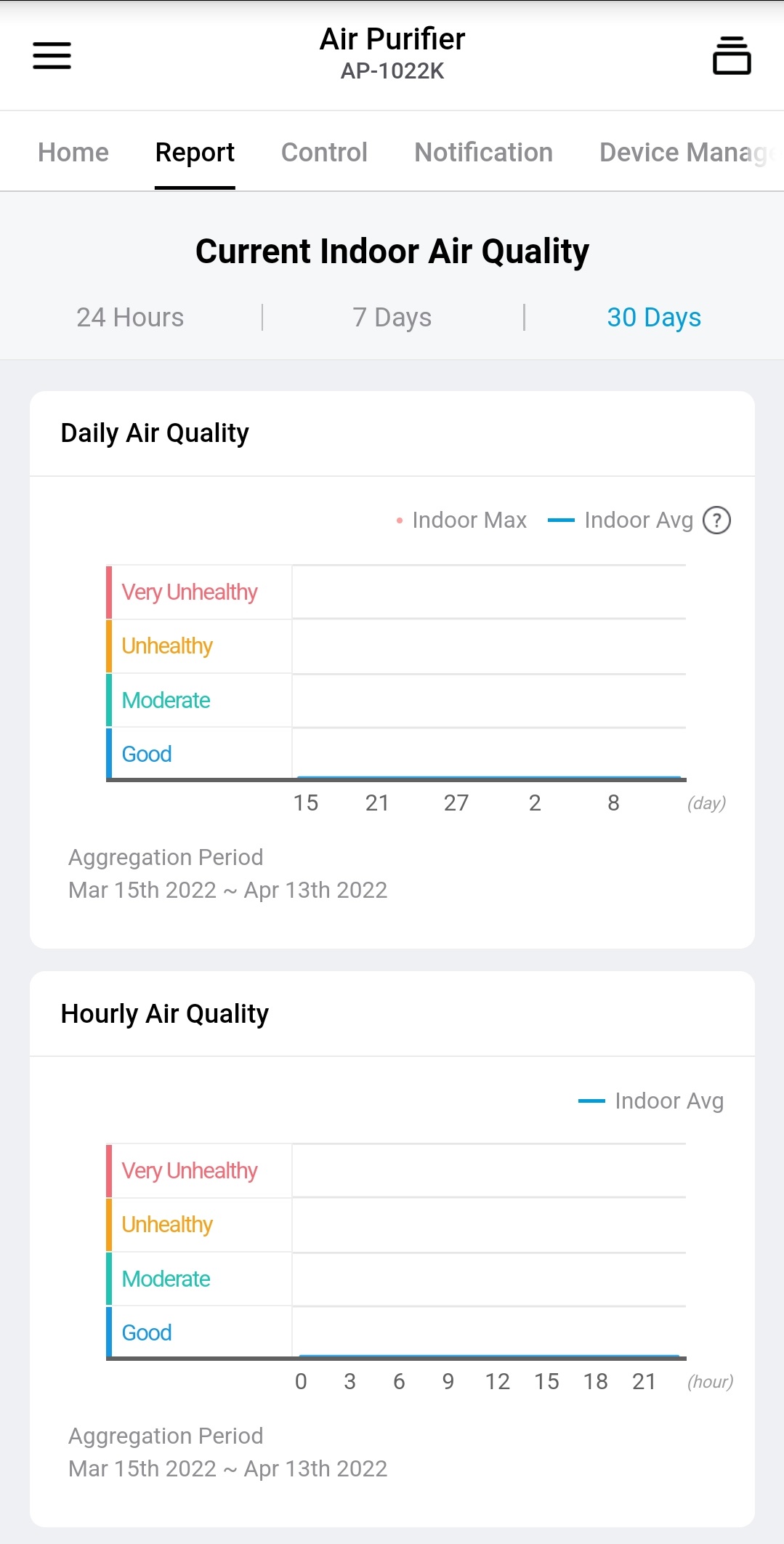
Report
- You can check the monthly report on product usage and air quality.
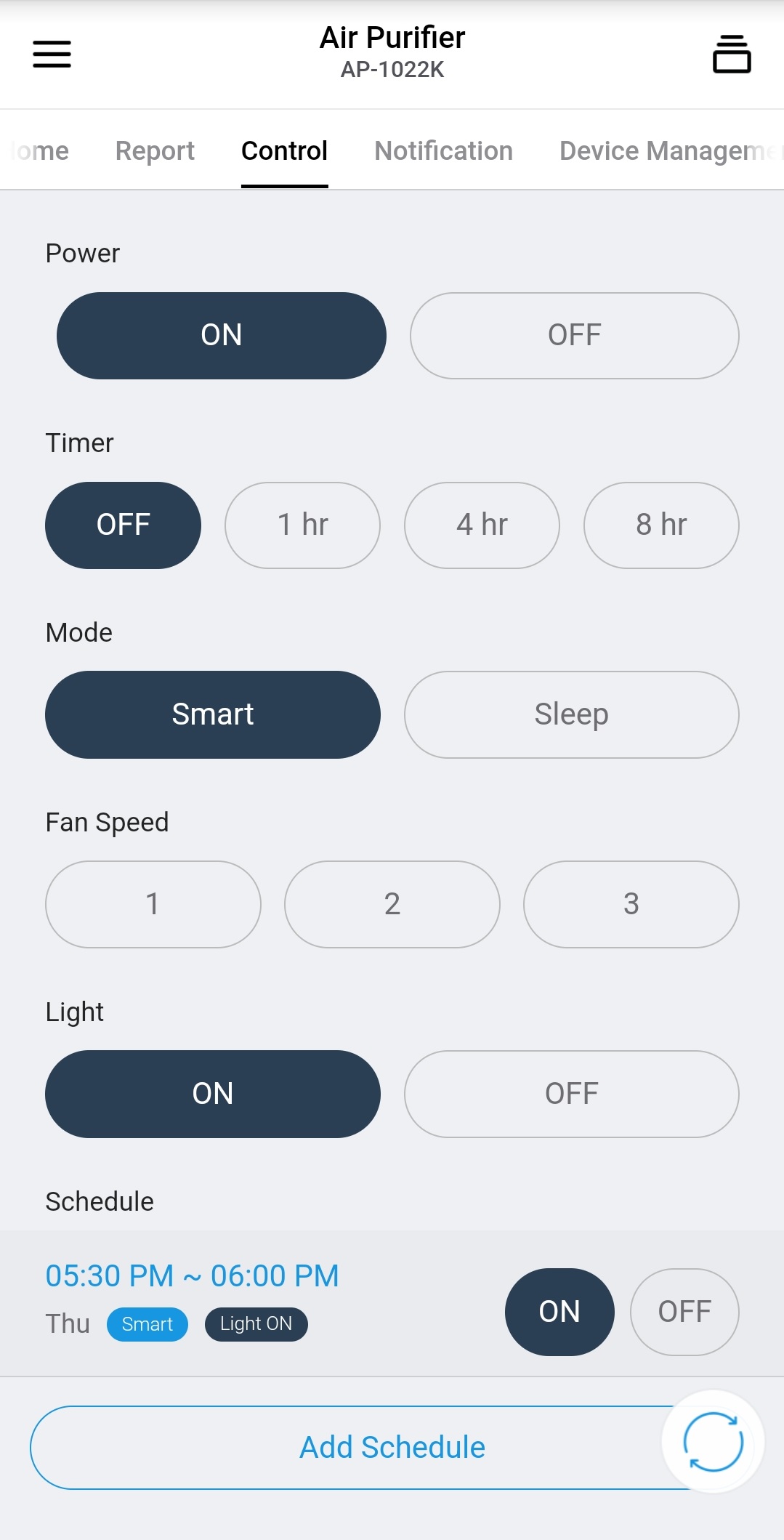
Control
- You can manage the product remote control and operation schedule.
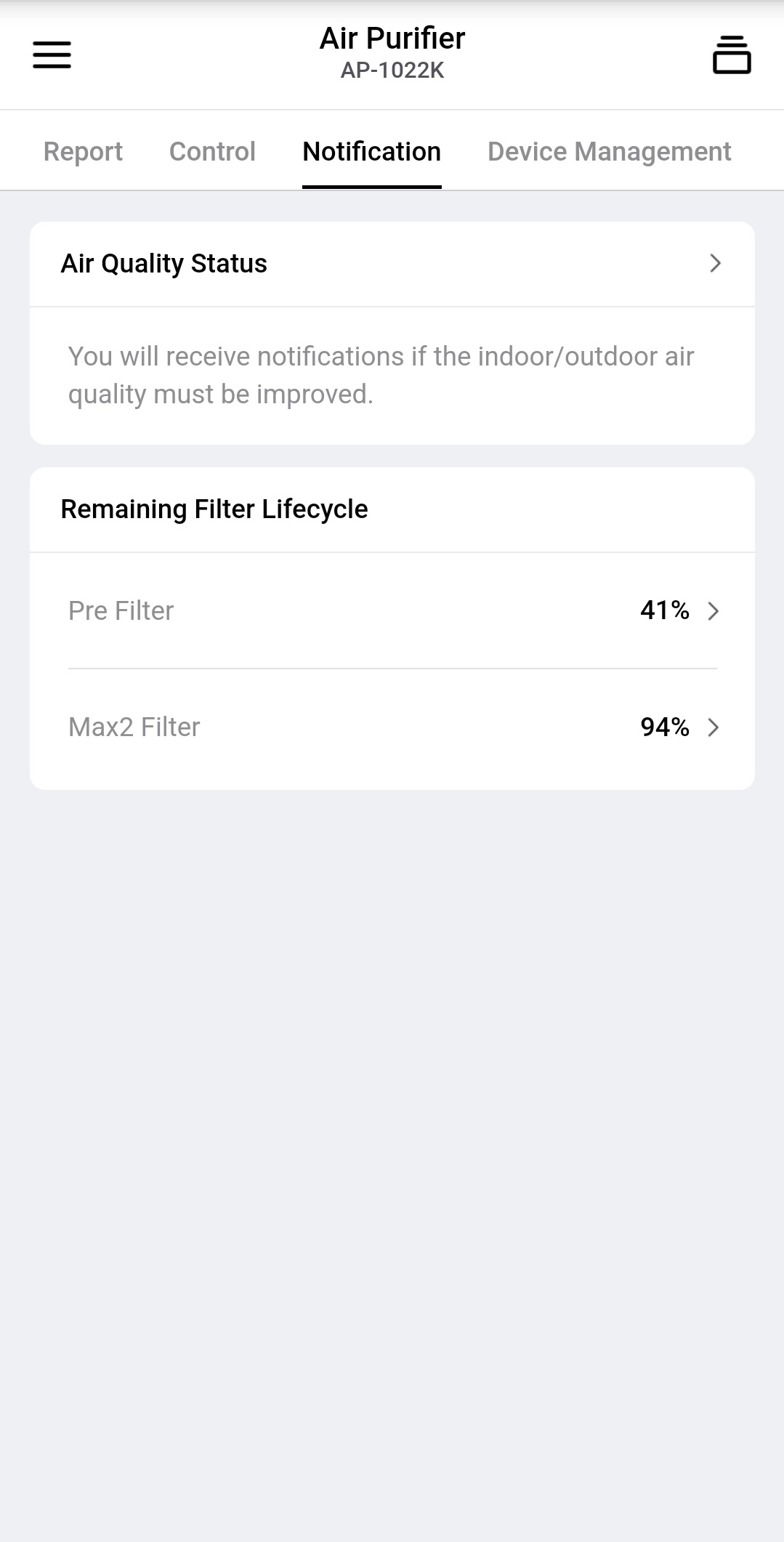
Notification
- You can check the product status and notifications about air quality.
-
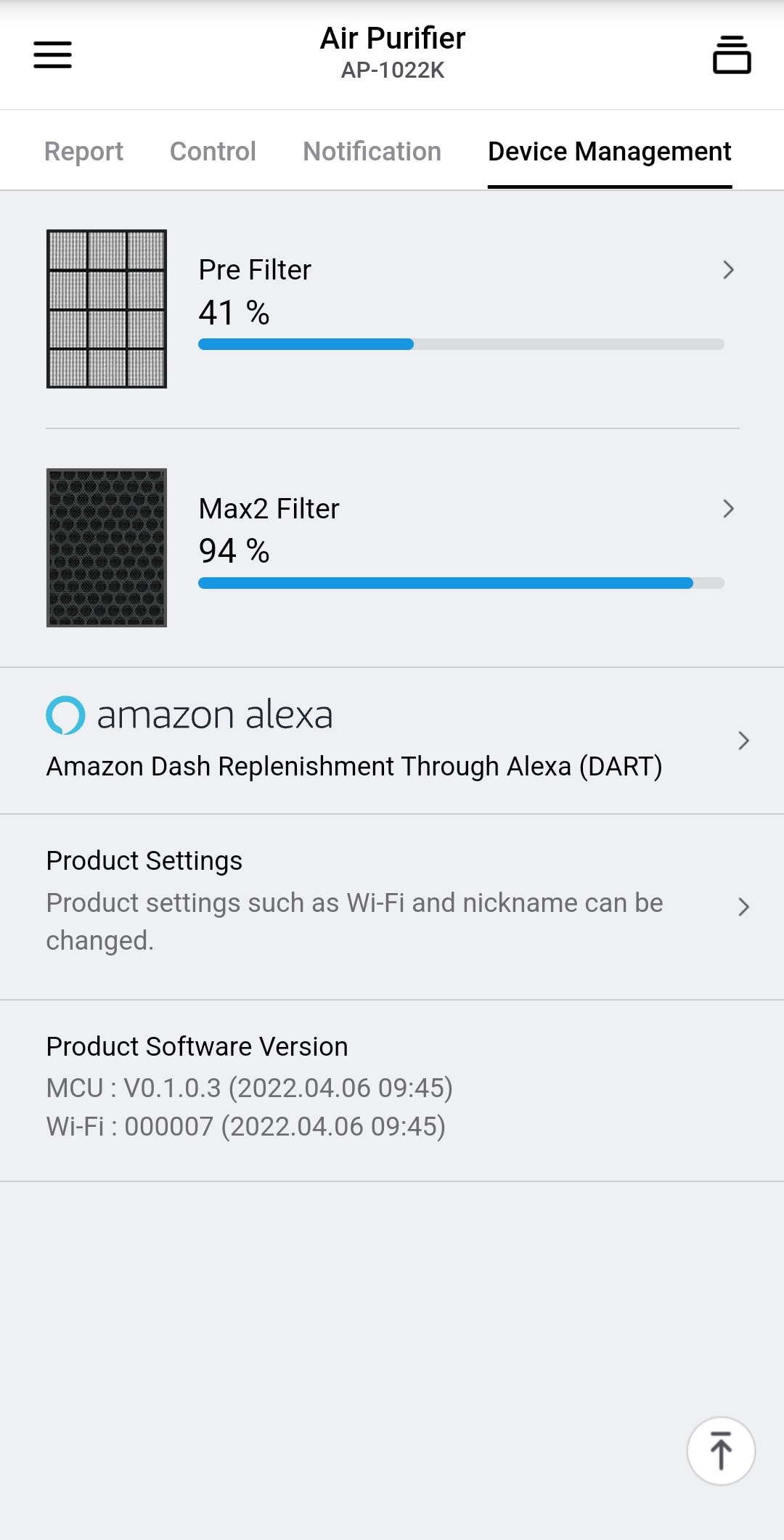
Device Management
- You can check the filter status and set the product.
Precautions when connecting Wi-Fi of the product
- Coway’s products support both 2.4GHz and 5GHz radio frequency of Wi-Fi.
- To make a Wi-Fi connection to the product, please make sure your smartphone is connected to a wireless network. When not connected, please turn on Wi-Fi in the setting and select a wireless router(AP) to connect.
- The wireless router and internet connection line must be purchased and installed separately. Please contact your internet service provider or install by yourself to use a wireless network.
- Please install the wireless router close to the product. The strength of the wireless network signal may vary depending on the location or distance between the product and the router.
- The connection may not be possible due to an unstable network environment or firewall problem. If you can't connect or have trouble setting up your network, contact your internet service provider for help.
- SSID of the wireless router(Wi-Fi name) must be set to alphanumeric characters. If you use non-alphanumeric characters, you may not be able to connect.
- If you still can't connect to the network after following the instructions provided by your internet service provider, please contact us.
- After connecting Wi-Fi to the product, data reception may be delayed for a certain time to stabilize communication.
- You must use a Wi-Fi router set to a Wi-Fi frequency channel permitted for use in the country where the product is released to connect the product correctly.
- If the Wi-Fi router you want to connect to is not set to a Wi-Fi frequency channel officially allowed by the country where the product is released. In that case, the application may not discover the Wi-Fi AP for that router, or you may be unable to connect to the product.
- If you cannot search for Wi-Fi AP in a standard wireless network environment or continue to be unable to connect the product, contact the customer service center.